v0.5.0Everything in Tidemark
Find it, understand it, get it back.
coming soonto the Microsoft Store
Compare Free and Pro00Index
At a glance
Free10 features
- 01OverviewDrive health, the biggest apps and safe quick wins on one screen.
- 02CleanEverything Tidemark can clear, sorted by how safe it is.
- 03ExploreA fast scan of any drive or folder, as a treemap and a list.
- 05AppsSpace per app, added up across all the places it hides data.
- 06Uninstallpart ProRun an app's own uninstaller, then clear what it left behind.
- 07AI toolspart ProWhich AI apps and model servers are running, and what they use.
- 08History and forecastspart ProCompare snapshots, pinpoint what grew and see when a drive will fill.
- 09Duplicatespart ProIdentical files by content, including duplicate AI models.
- 13SystemWindows’ own “System & reserved” space, explained.
- 14CollectorGather items from anywhere, review them together, then remove.
01Free
Overview
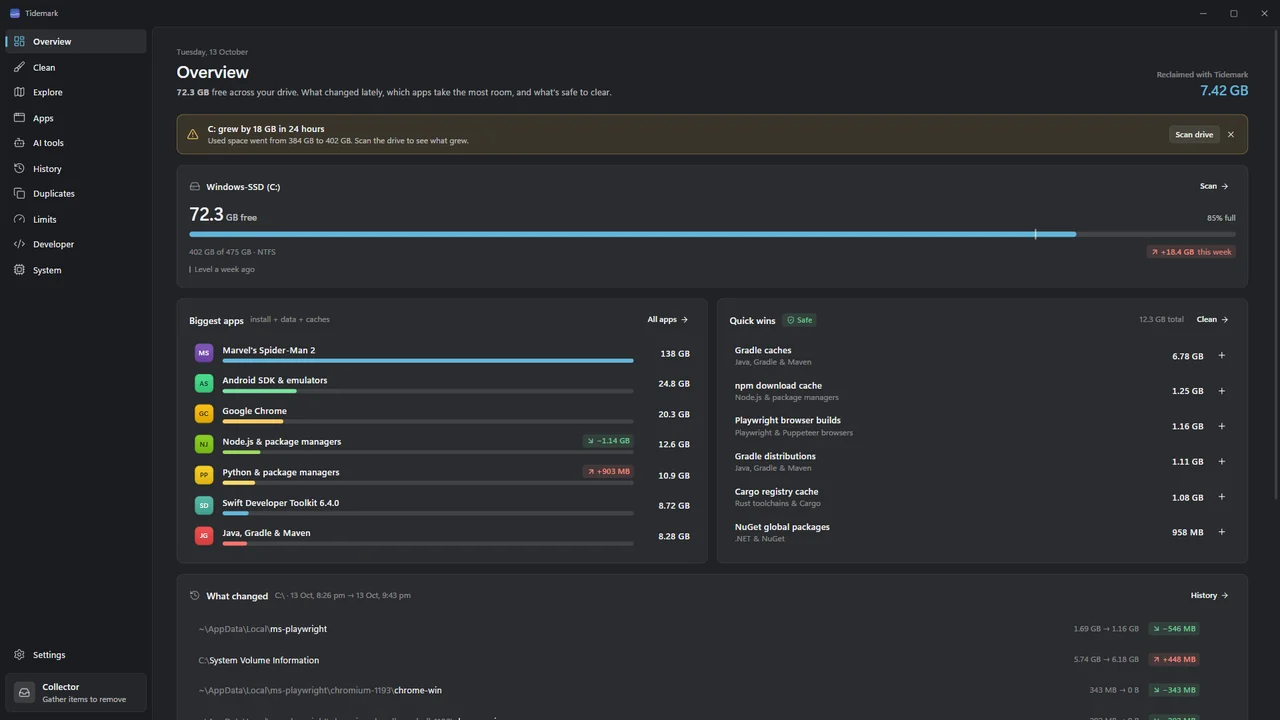
Open Tidemark and see how full each drive is, how much it changed this week, which apps take the most room and what you can clear safely right now.
- Free space and weekly change for every drive
- The biggest apps, with growth since the last check
- Quick wins: caches and temp files that are safe to clear
- What changed since the last snapshot
- Alerts when a drive suddenly fills
02Free
Clean
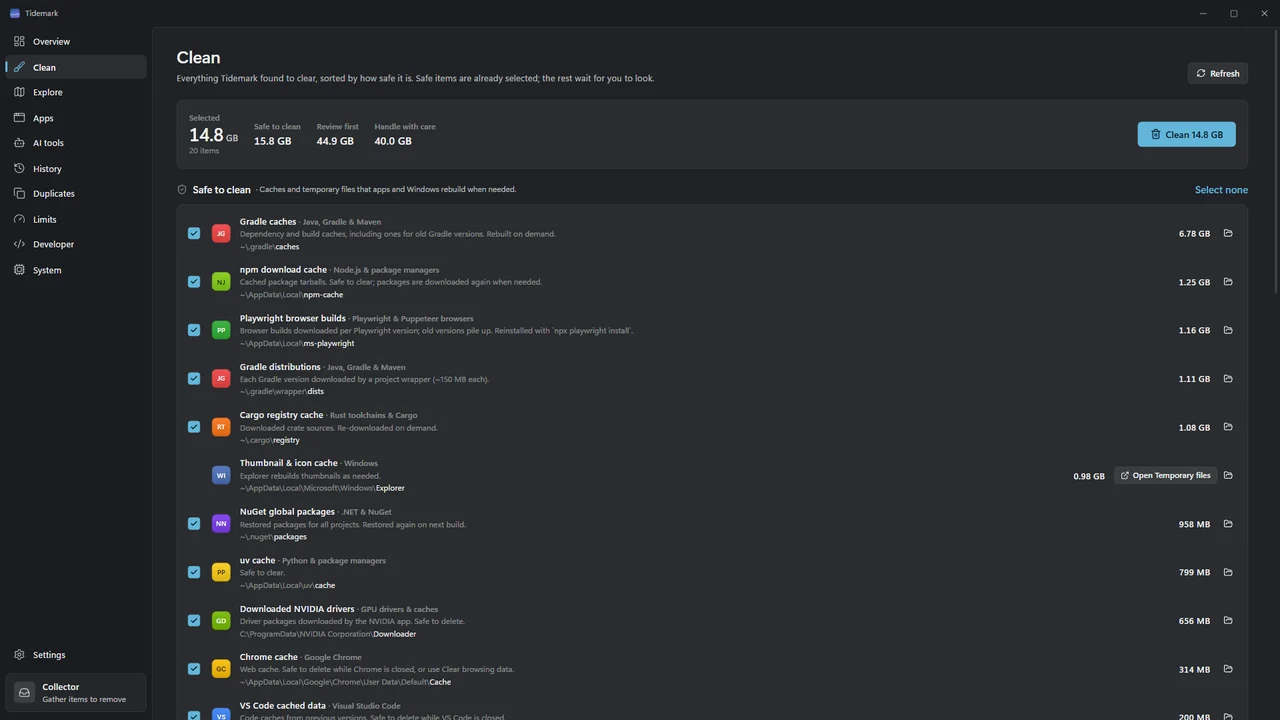
One list of everything that can go. Safe caches and temporary files are already ticked, things worth a look wait for you, and items that cannot be recreated are explained instead of offered.
- Safe to clean, Review first and Handle with care
- One button sends the selection to the Recycle Bin
- Items Windows must clean itself open the right Windows tool
- A running total of what you have reclaimed
03Free
Explore
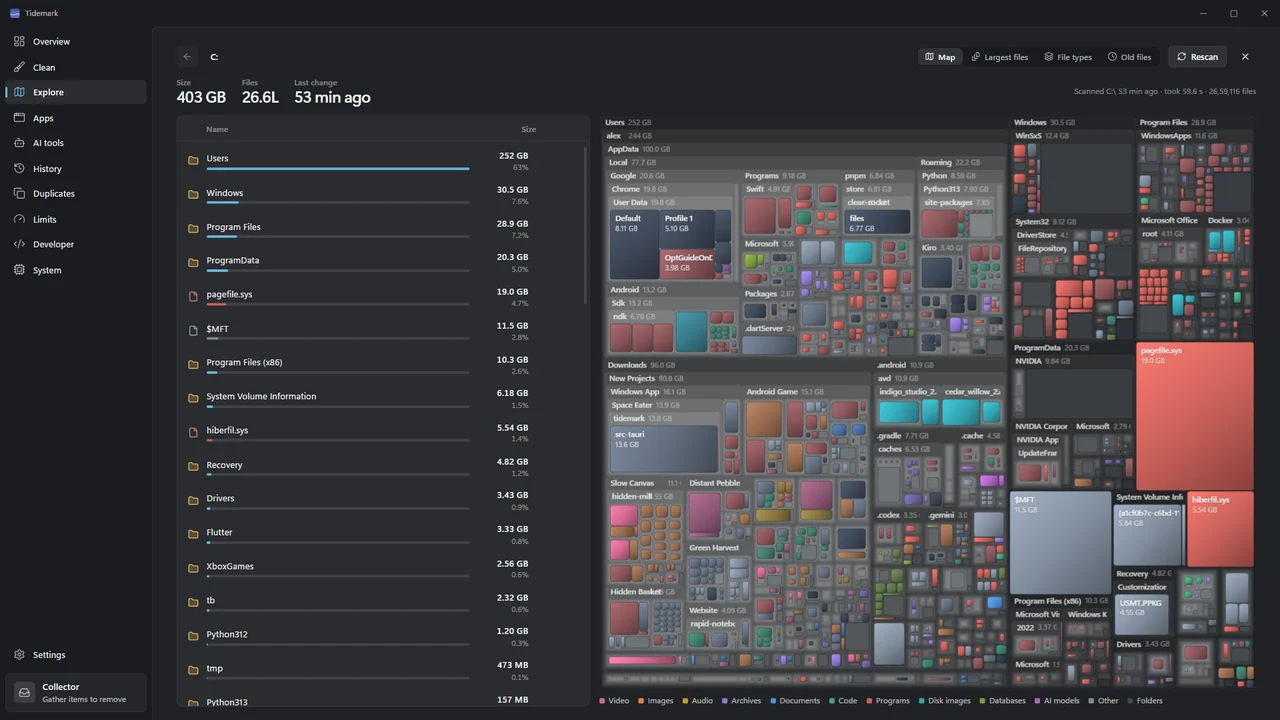
Scan a drive or folder and see it as a cushioned treemap or a size-sorted list, with the largest files, file types and old files a click away. The latest scan of each place is remembered, so it reopens instantly.
- Treemap and size-sorted list side by side
- Largest files, file types and old files
- Remembered scans reopen instantly after a restart
- Send anything to the Collector to review later
04Pro
Fast scan Pro
Instead of opening every folder, Fast scan reads the NTFS Master File Table directly, so a whole drive is measured in seconds, including folders Windows normally will not let you see. Windows asks for administrator permission each time, and nothing on the drive is written.
- Whole-drive scans in seconds on NTFS
- Sees inside folders a normal scan cannot read
- Read-only, after a Windows permission prompt
05Free
Apps
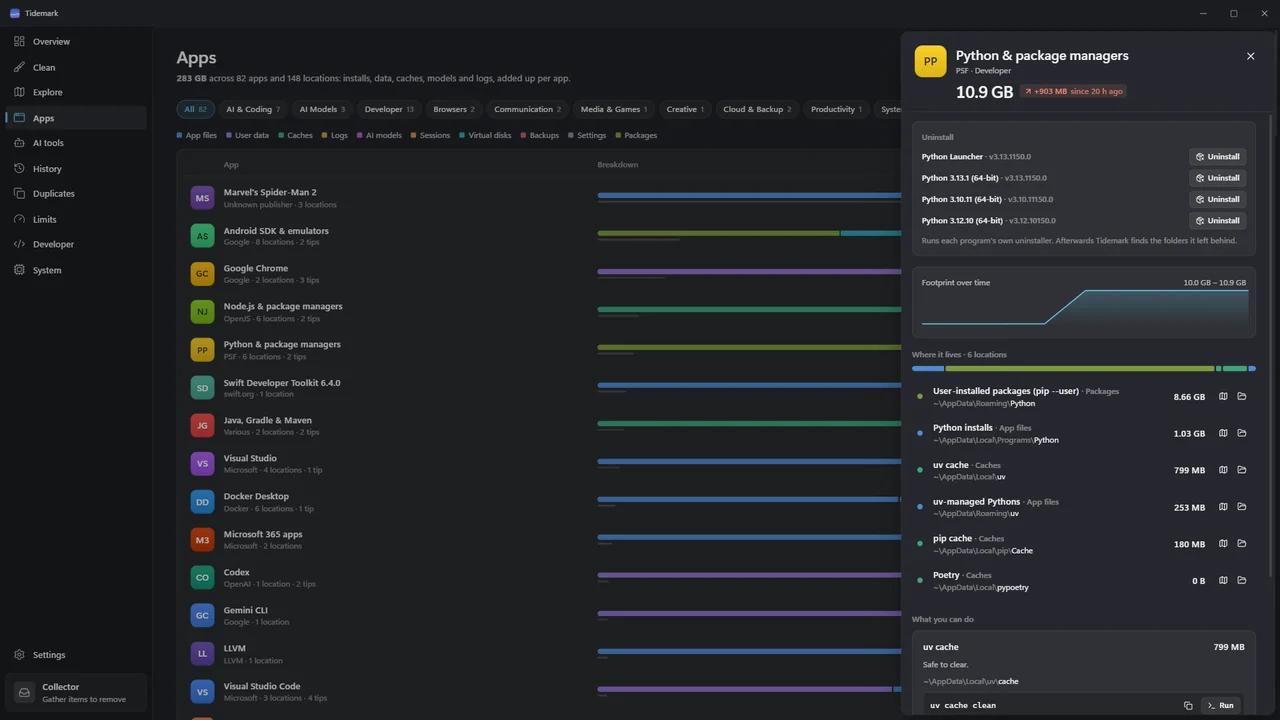
Apps scatter data across Program Files, AppData, ProgramData and hidden folders. Tidemark adds it up per app, covering browsers, games, Docker, WSL, VS Code, Cursor, Claude, Codex, Ollama and more, and flags folders left behind by apps you have already uninstalled.
- One footprint per app, broken down by app files, user data, caches, logs and models
- Growth since the last sample
- Advice and official clean commands per app
- Folders that belong to no installed app
06Free, part Pro
Uninstall
Start any program’s own uninstaller from Tidemark. When it finishes, Tidemark lists the folders the app left behind, with only caches, logs and settings ticked.
- Uses the uninstaller Windows has registered for the app
- Waits for the uninstall to finish
- Lists leftover folders, with safe kinds pre-ticked
ProRunning the uninstaller is free. Clearing the leftovers in one step is Pro.
07Free, part Pro
AI tools
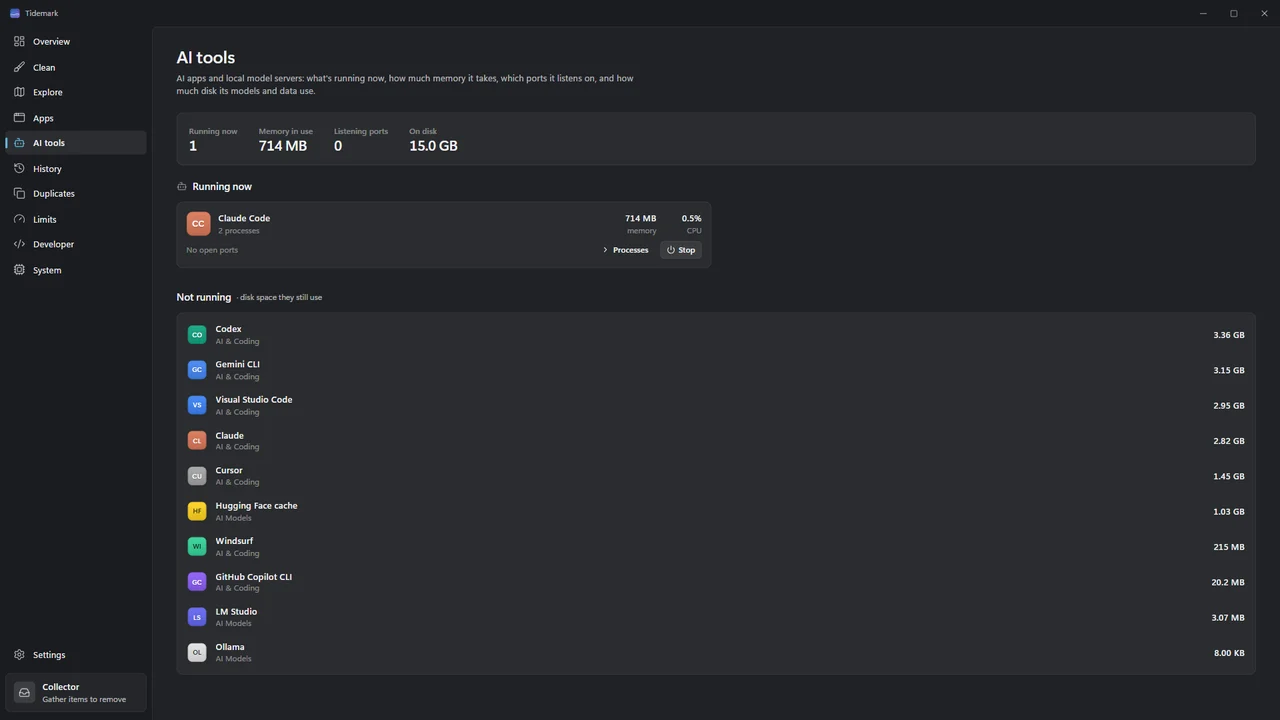
See which AI apps and local model servers are running (Ollama, LM Studio, ComfyUI, llama.cpp, Cursor, Claude, Claude Code and more), how much memory and CPU they use, which ports they listen on, and a warning when one is reachable from your network.
- Memory, CPU and listening ports per tool
- A warning when a model server is open to your network
- Disk space of the tools that are not running
- Stop a tool to free its memory
ProSeeing your AI tools is free. Stopping them is Pro.
08Free, part Pro
History and forecasts
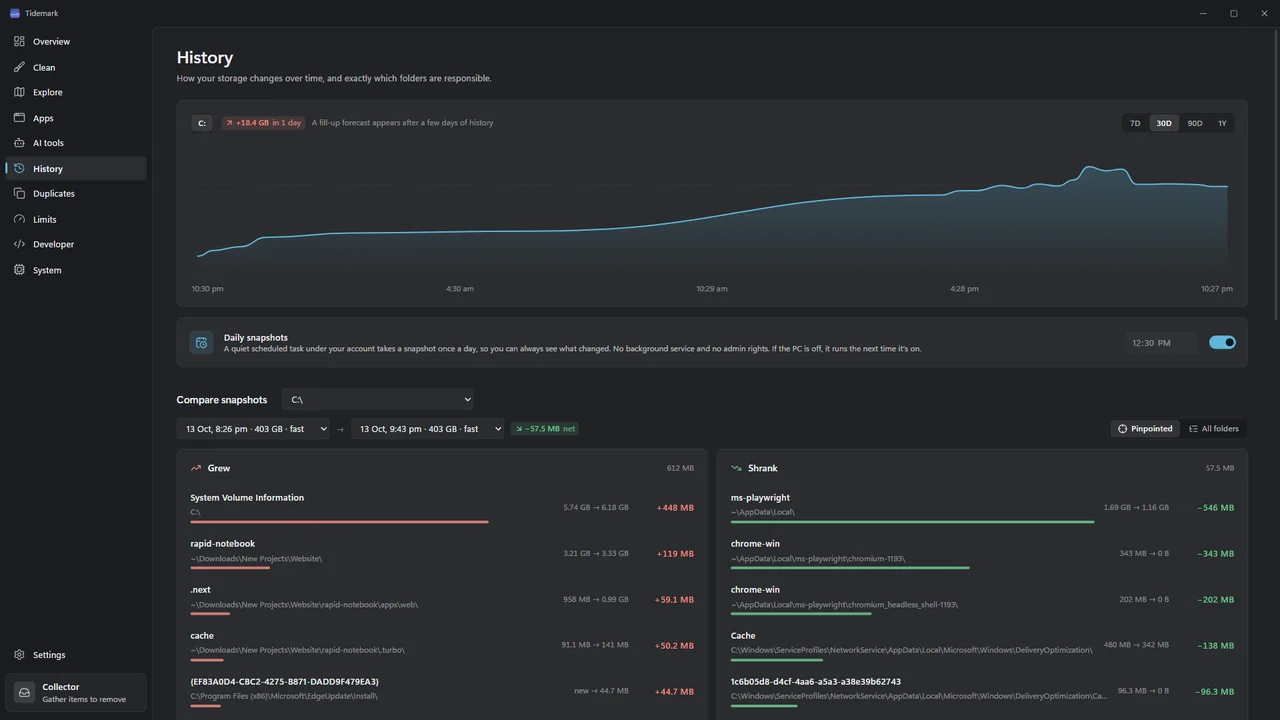
Every scan is a snapshot. Compare any two and Tidemark pinpoints the folders that grew or shrank. A trend over your drive’s history says when it could be full, for example “C: could be full in ~33 days”.
- Used-space chart per drive
- Compare any two snapshots, folder by folder
- Fill-up forecasts that restart after a big cleanup
- Optional daily snapshots, with no service and no admin
ProDaily snapshots and what changed between the two latest are free. Comparing any two snapshots and forecasts are Pro.
09Free, part Pro
Duplicates
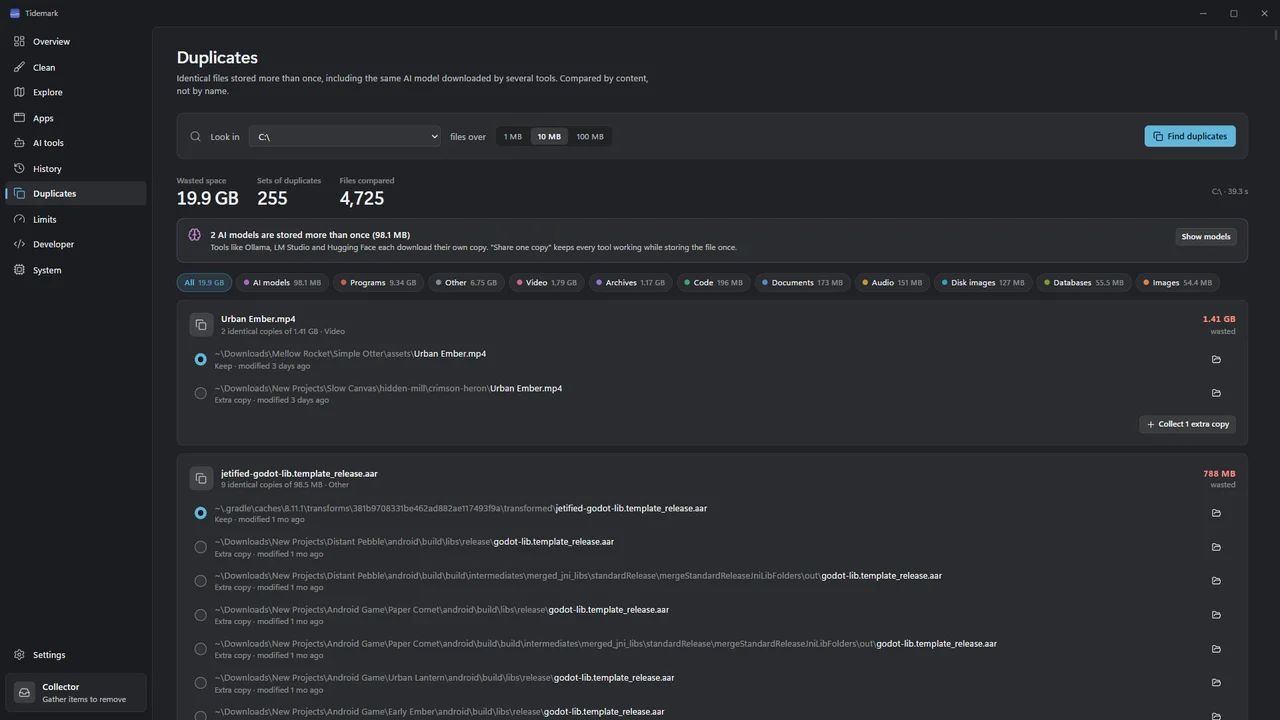
Find identical files by their content. Hard links are recognised, and cloud-only files are skipped so nothing downloads. Tidemark spots the same AI model kept by Ollama, LM Studio, Hugging Face and ComfyUI, and can keep one shared copy with every tool still working.
- Matches by content, not by name
- Skips cloud-only files, so nothing downloads
- Share one copy of a duplicate AI model through an NTFS hard link
ProFinding duplicates is free. Sharing one copy is Pro.
10Pro
Developer cleanup Pro
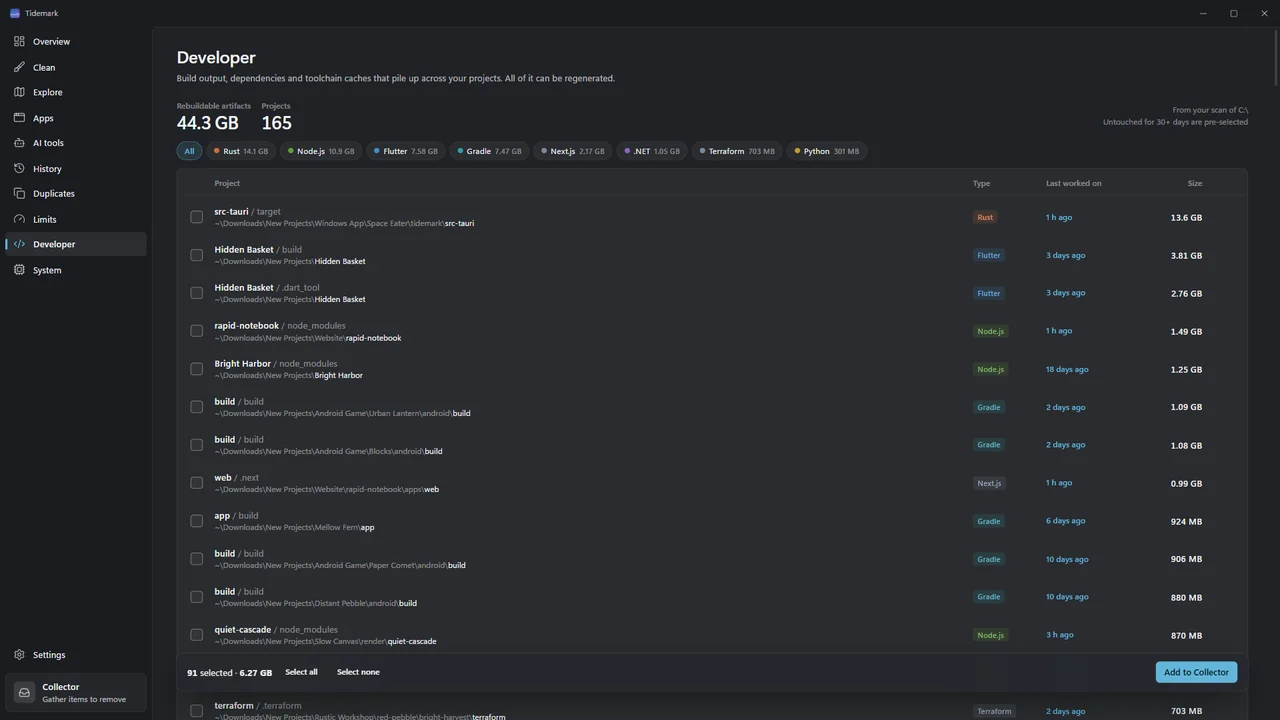
Find node_modules, Rust target, Python virtual environments, .NET bin and obj, Gradle, Flutter, Next.js, Unity, Unreal and more next to their projects, with when each project was last worked on. Projects untouched for 30 days or more are pre-selected.
- Build folders found next to their project files
- “Last worked on” dates per project
- Toolchain and model caches with their official clean commands
11Pro
Limits Pro
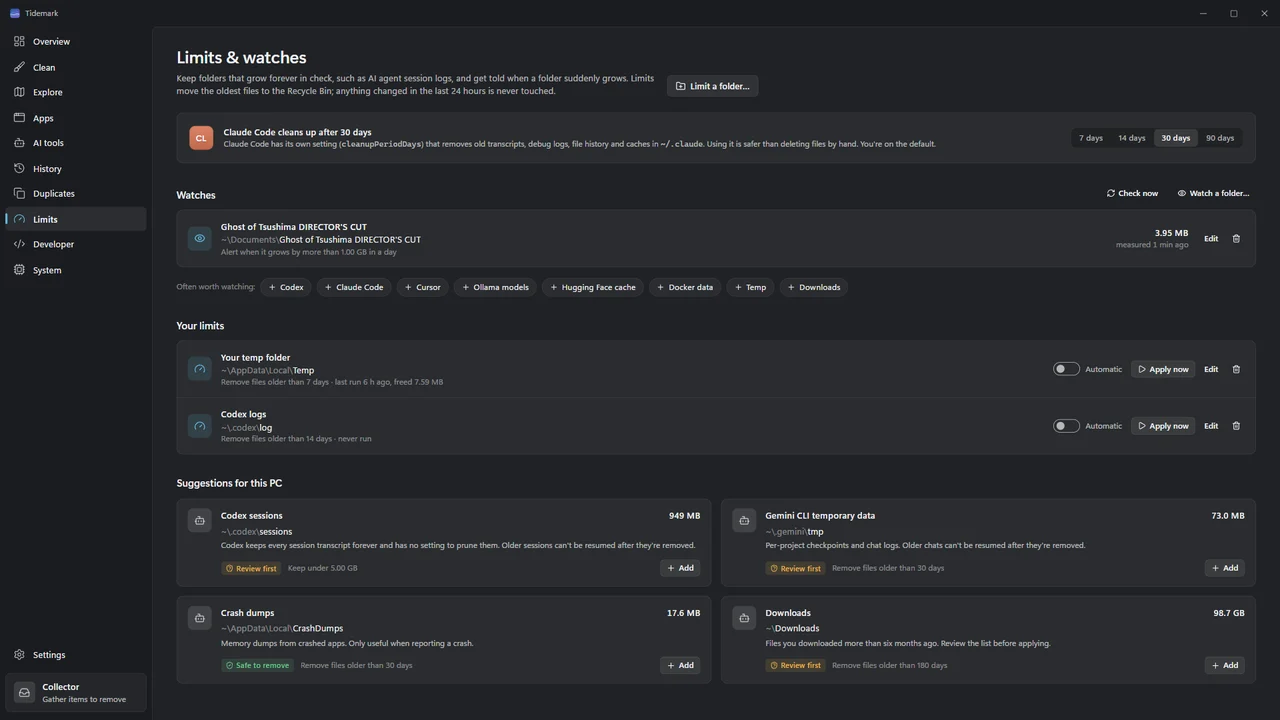
Set a size cap or an age limit on folders such as AI agent session logs, temp files, crash dumps or Downloads. You preview the exact files first, the oldest go to the Recycle Bin, and anything changed in the last 24 hours is never touched.
- Cap by size or by age
- Preview the exact file list first
- Never touches files changed in the last 24 hours
- Optional automatic run with the daily snapshot
12Pro
Watches Pro
Watch any folder: “tell me when it grows by 1 GB in a day” or “when it passes 20 GB”. An optional hourly check takes a few seconds, needs no admin, and reports sudden growth as a Windows notification.
- Growth and size alerts for any folder
- Hourly check in a few seconds, no admin
- Windows notifications, no account
13Free
System
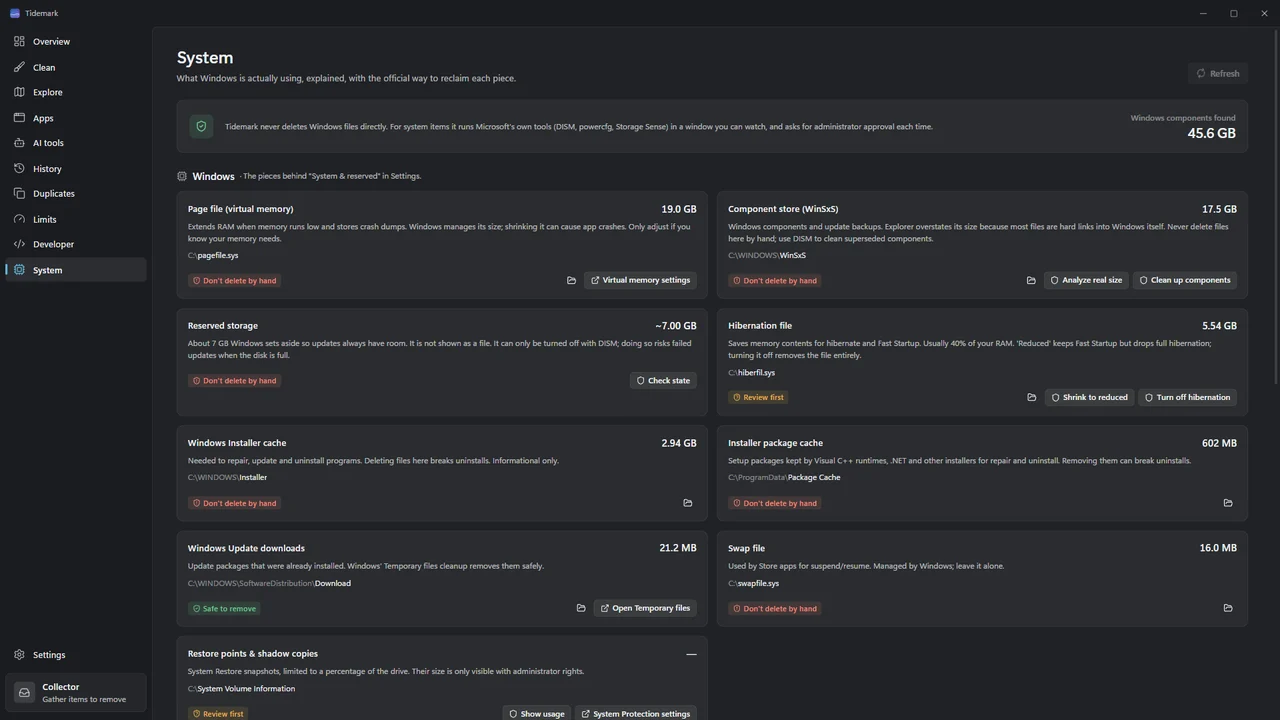
Tidemark explains the space Windows keeps for itself: the hibernation file, page file, WinSxS, Windows Update caches, restore points, reserved storage and WSL, Docker and Hyper-V virtual disks. It cleans them with Microsoft’s own tools, in a visible window, after a Windows permission prompt.
- What each system item is and whether it can shrink
- Microsoft’s own tools: DISM, powercfg, Storage Sense, diskpart
- Compact WSL and Docker virtual disks
- Warnings for known Windows bugs that fill drives
14Free
Collector
A tray that collects files and folders from every page. Review them together, then send them all to the Recycle Bin. Tidemark never deletes anything permanently.
- Collect from Explore, Apps, Duplicates and more
- One review before anything moves
- Everything goes to the Recycle Bin
§Safe by design
The rules Tidemark always follows.
01
You review everything first
Tidemark shows exactly what it will remove before anything moves. Nothing is deleted in the background.
02
The Recycle Bin, every time
Removals go to the Windows Recycle Bin, and Windows warns before anything would be deleted permanently.
03
Recent files are left alone
Limits never touch a file changed in the last 24 hours.
04
Microsoft’s tools for Windows’ own space
System items are never deleted directly. DISM, powercfg, Storage Sense and diskpart run in a visible window after a Windows permission prompt.
05
Apps uninstall the way they were built to
Tidemark only runs the uninstaller Windows has registered for an app, and offers leftovers once the app is gone.
06
Shared AI models keep working
Before sharing one copy of a model, Tidemark checks both files again, links them and only then removes the extra copy.
→Get Tidemark
See where your space went.
Free to use, with no time limit. Tidemark Pro is $9.99 once (usually $19.99), for up to 3 PCs.
coming soonto the Microsoft Store
See pricingWindows 10 (version 2004, build 19041) or later and Windows 11, on x64 PCs.