v0.5.0Download
Get Tidemark for Windows.
coming soonto the Microsoft Store
What’s new01Spec
System requirements
- Windows
- Windows 10 version 2004 (build 19041) or later, or Windows 11
- Processor
- x64 (64-bit Intel or AMD)
- Fast scan
- An NTFS drive, the default for Windows drives
- Signed by
- The Microsoft Store, which also installs updates
02Install
Up and running in a minute
- 01
Get it from the Microsoft Store
Open the Store listing and choose Get. The Store installs Tidemark and keeps it up to date.
- 02
Open Tidemark
Find it in the Start menu. The Overview reads your drives straight away; no account, no sign-in.
- 03
Scan a drive
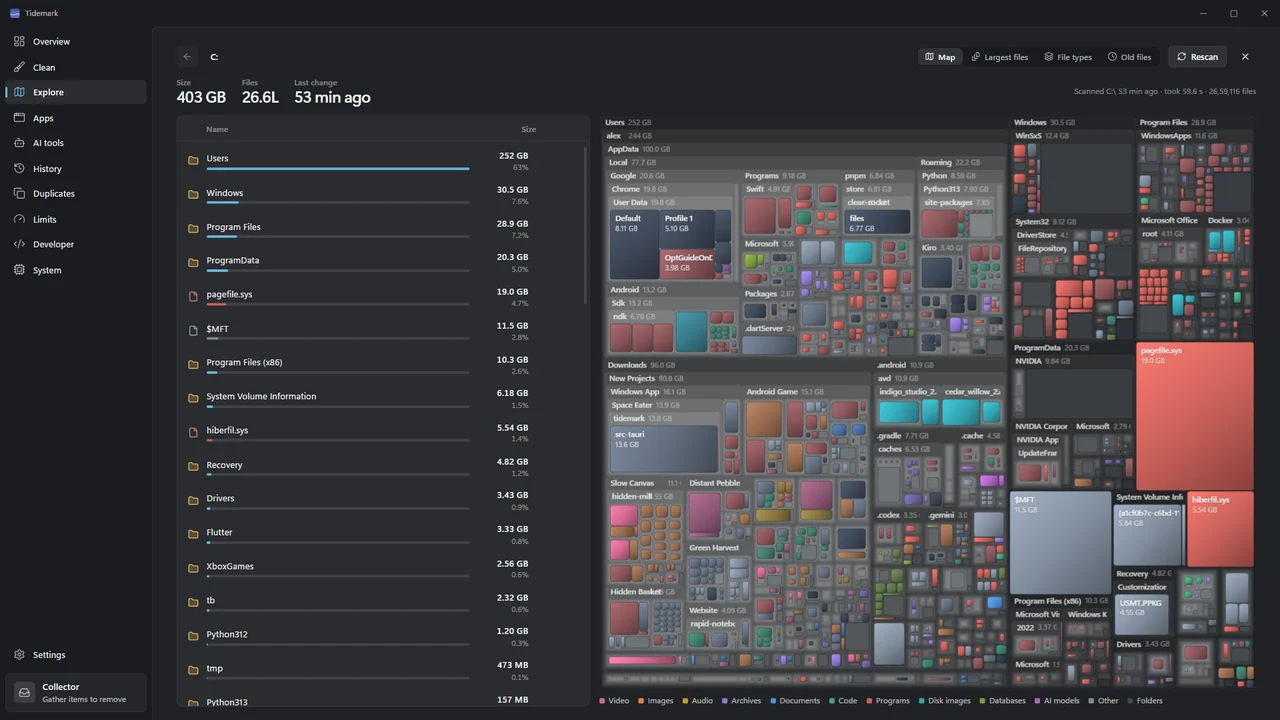
Choose Scan on a drive, or open Explore. The first scan of C: usually takes a minute or two.
- 04
Optional: activate Pro
Buy Tidemark Pro, then paste the key from your email into Settings › Tidemark Pro.
03Permissions
What Tidemark asks Windows for, and why
The Store shows these as the app’s capabilities. Here is what each one is used for.
3.1
Full trust
Tidemark is a desktop app, so it can measure folders on every drive and read the list of installed programs.
3.2
Administrator, only when you ask
Fast scan, cleaning Windows’ own space with Microsoft’s tools and uninstalling a program installed for all users show a Windows permission prompt each time.
3.3
Real cleanups under AppData
Tidemark turns off the Store’s file virtualization, so clearing another app’s cache under AppData frees real space instead of a private copy.
3.4
Optional scheduled tasks
Daily snapshots and the hourly check are per-user scheduled tasks you turn on yourself. No services and no drivers.
04Uninstall
Uninstalling Tidemark
If you turned on daily snapshots or the hourly check, turn them off first so their scheduled tasks are removed. Then open Settings › Apps › Installed apps, find Tidemark and choose Uninstall. Your history and saved scans stay in %LOCALAPPDATA%\in.thryveapps.tidemark until you delete that folder.
If you use Tidemark Pro, deactivate the PC in Settings › Tidemark Pro first, so the activation can be used on another PC.
05Questions
Before you install
01Which versions of Windows does it run on?
Windows 10 version 2004 (build 19041) or later, and Windows 11, on x64 PCs. Fast scan needs a drive formatted as NTFS, which is the default for Windows drives.
02Where do I get it?
Tidemark is distributed through the Microsoft Store, which signs and updates it. The Store listing will be linked from this site as soon as it is public.
03Does it run in the background?
Only if you turn it on. Daily snapshots and the hourly check are optional per-user scheduled tasks that take a few seconds and show no window. Tidemark installs no services and no drivers.
04Why does Windows ask for administrator permission?
Only for three things you start yourself: Fast scan (reading the Master File Table needs it), cleaning Windows’ system space with Microsoft’s tools, and uninstalling a program installed for all users. Tidemark never asks for it on its own.
05Where does Tidemark keep its data?
In %LOCALAPPDATA%\in.thryveapps.tidemark: the history database, remembered scans and a log. Uninstalling Tidemark from Windows removes the app; you can delete that folder to remove its data too.
→Get Tidemark
See where your space went.
Free to use, with no time limit. Tidemark Pro is $9.99 once (usually $19.99), for up to 3 PCs.
coming soonto the Microsoft Store
See pricingWindows 10 (version 2004, build 19041) or later and Windows 11, on x64 PCs.