Skip to content

v0.5.0Disk space app for Windows 10 and 11

See where your disk space went, and why.

Your drive is full again and you don’t know why. Tidemark shows what’s using the space, what’s been growing and which app it belongs to, then helps you get it back safely.

coming soonto the Microsoft Store

Pro $9.99$19.99

free to use · pro is one payment · no account · no telemetry

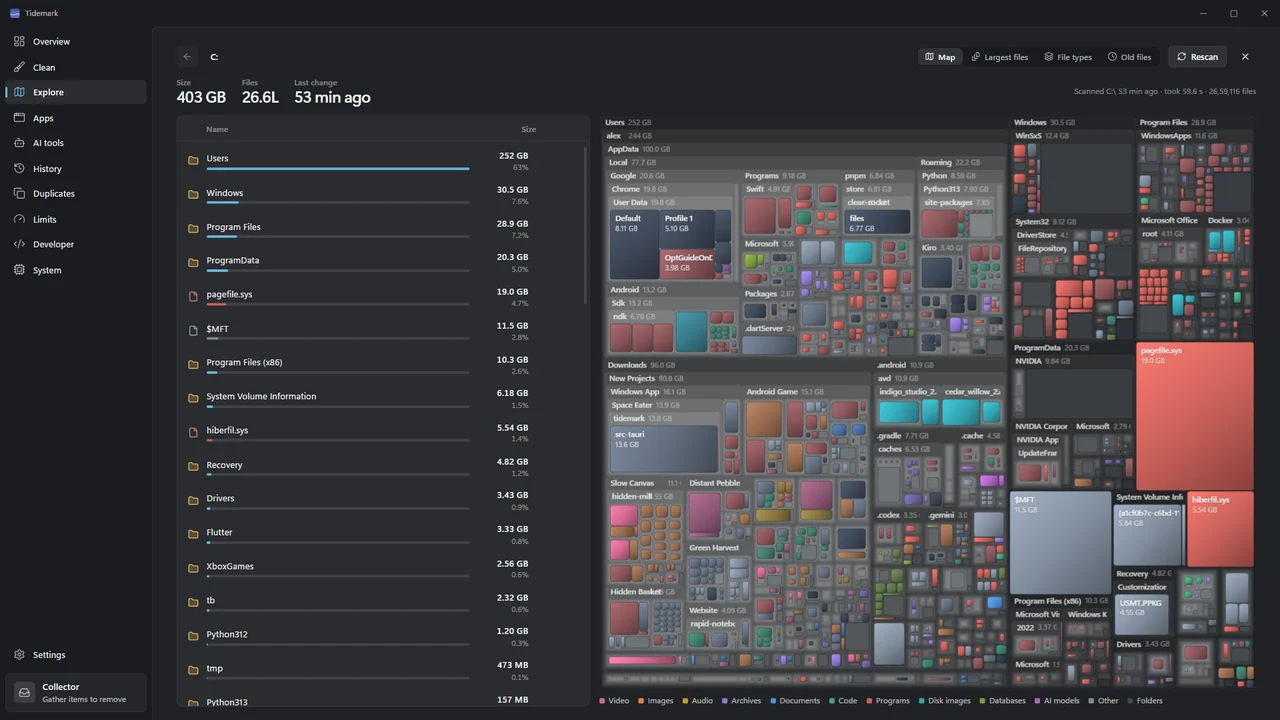
Tidemark Explore: a treemap of a drive beside a list of folders sorted by size.
fig. 1 — ExploreA real screenshot of Tidemark 0.5.0.

Explore any drive as a treemap

A cushioned treemap and a size-sorted list side by side, with the largest files, file types and old files a click away. Fast scan reads a whole NTFS drive in seconds.

  • 01

    Free, no time limit

    Scan, explore and clean without paying.

  • 02

    Pro is $9.99 once

    Usually $19.99. No subscription, up to 3 PCs.

  • 03

    Recycle Bin, every time

    Nothing is deleted permanently.

  • 04

    No account, no telemetry

    Your scans never leave your PC.

01Why Tidemark

Three things other disk tools don’t do together.

Most analyzers show what’s big right now. Tidemark also remembers, attributes and explains.

1.1Memory

It remembers, so it can tell you what grew.

Every scan is a snapshot. Compare two and Tidemark pinpoints the folders that grew or shrank, then forecasts when the drive will be full. A big folder you meant to keep is not the problem. The one that doubled since Tuesday is.
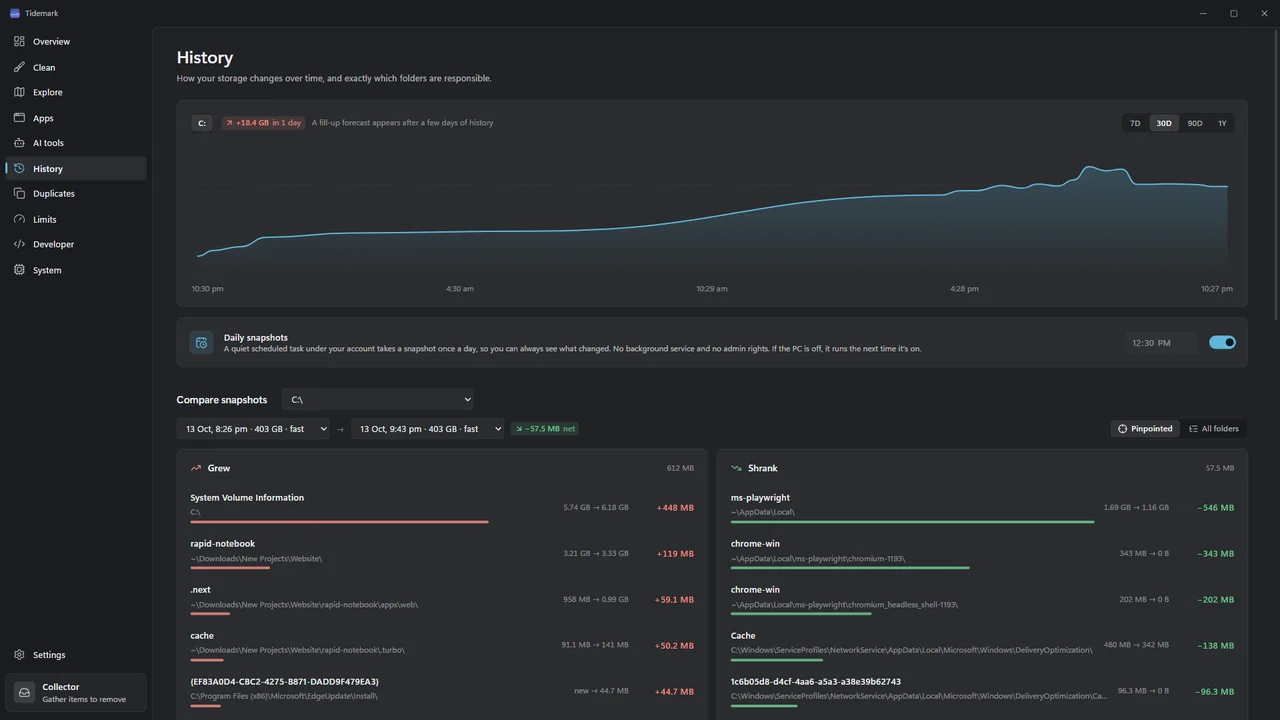
Tidemark History: a used-space chart for drive C and a comparison of two snapshots listing the folders that grew.
fig. 2 — HistorySee exactly which folders grew between snapshots.

1.2Attribution

It adds up each app, wherever it hides its data.

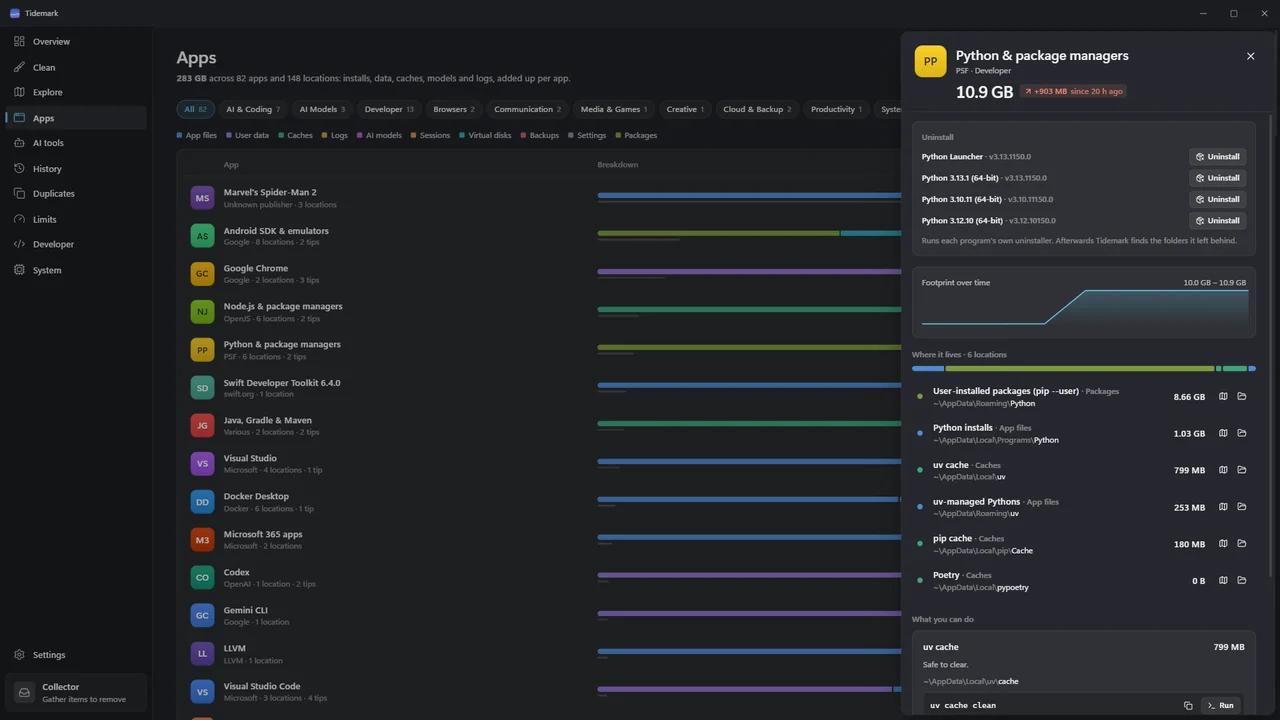
Apps scatter files across Program Files, AppData, ProgramData and hidden folders. Tidemark adds them up per app, from browsers and games to Docker, WSL, VS Code, Cursor, Claude, Codex and Ollama, and finds the folders uninstalled apps left behind.

Tidemark Apps: an app’s footprint broken down by app files, user data and caches, with an Uninstall button.
fig. 3 — AppsEvery app's real footprint, and its own uninstaller.

1.3Explanation

It explains before you delete.

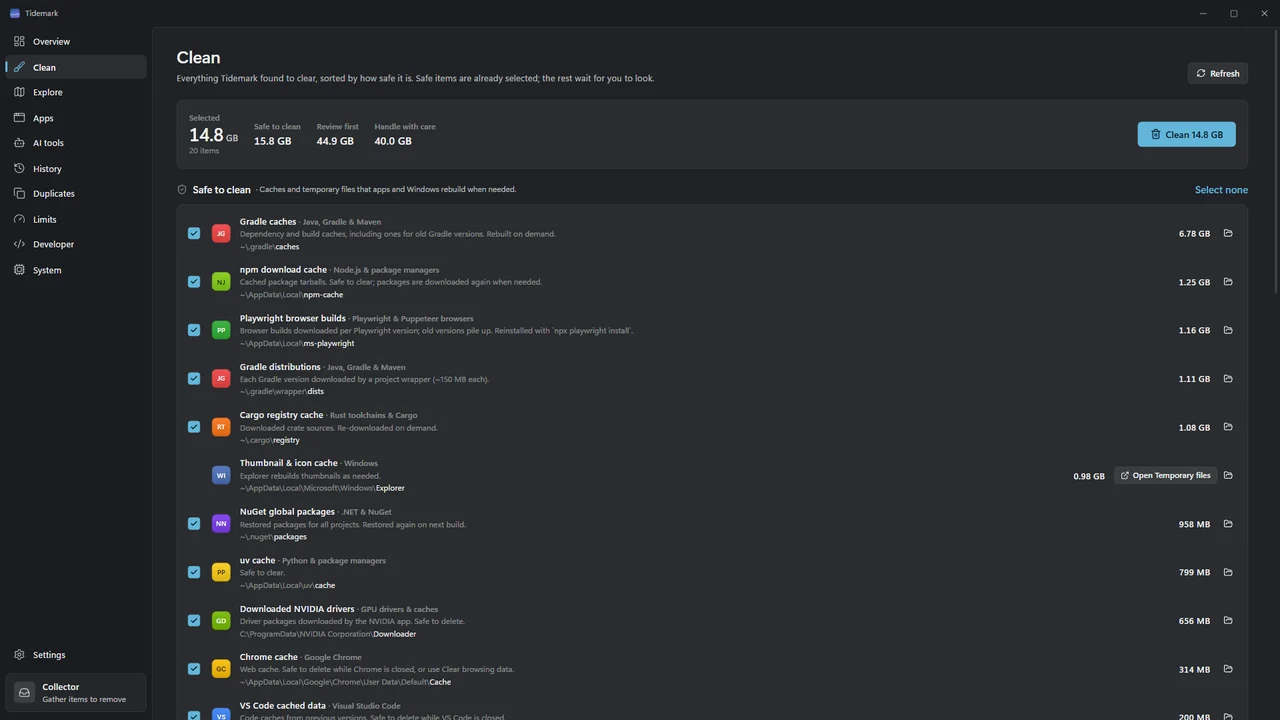
Every item says what it is, how risky it is to remove and the official way to reclaim it. Clean sorts everything into safe, review first and handle with care, and only the safe items are ticked for you.

Tidemark Clean: items grouped into Safe to clean, Review first and Handle with care, with sizes and a button to send the selection to the Recycle Bin.
fig. 4 — CleanEverything you can clear, sorted by how safe it is.

02A closer look

Built for the drives we actually have.

Game libraries, AI models, developer projects and a Windows install that keeps growing. Tidemark knows about all of them.

2.1

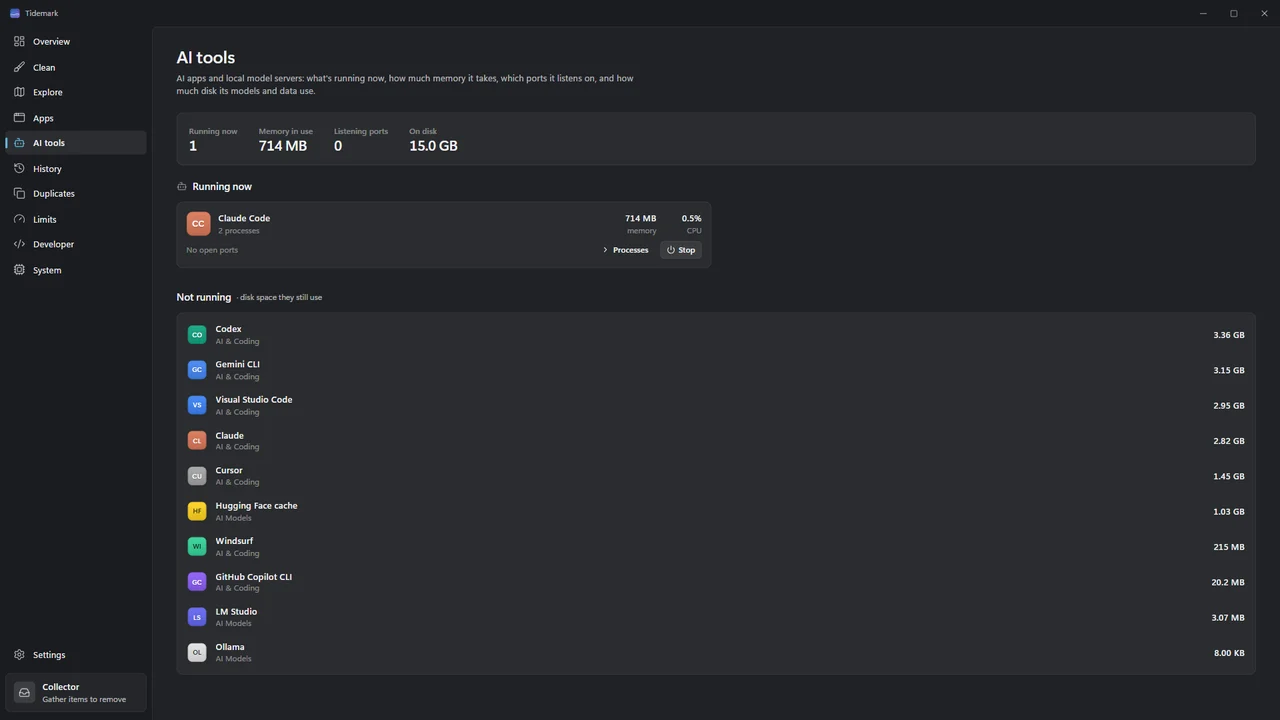
See your AI tools at work

Which AI apps and local model servers are running, how much memory they hold, which ports they listen on, and a warning when one is open to your network.

Tidemark AI tools: running AI apps and local model servers with memory, CPU and the ports they listen on.
fig. 5 — AI toolsSee which AI tools are running and what they use.

2.2

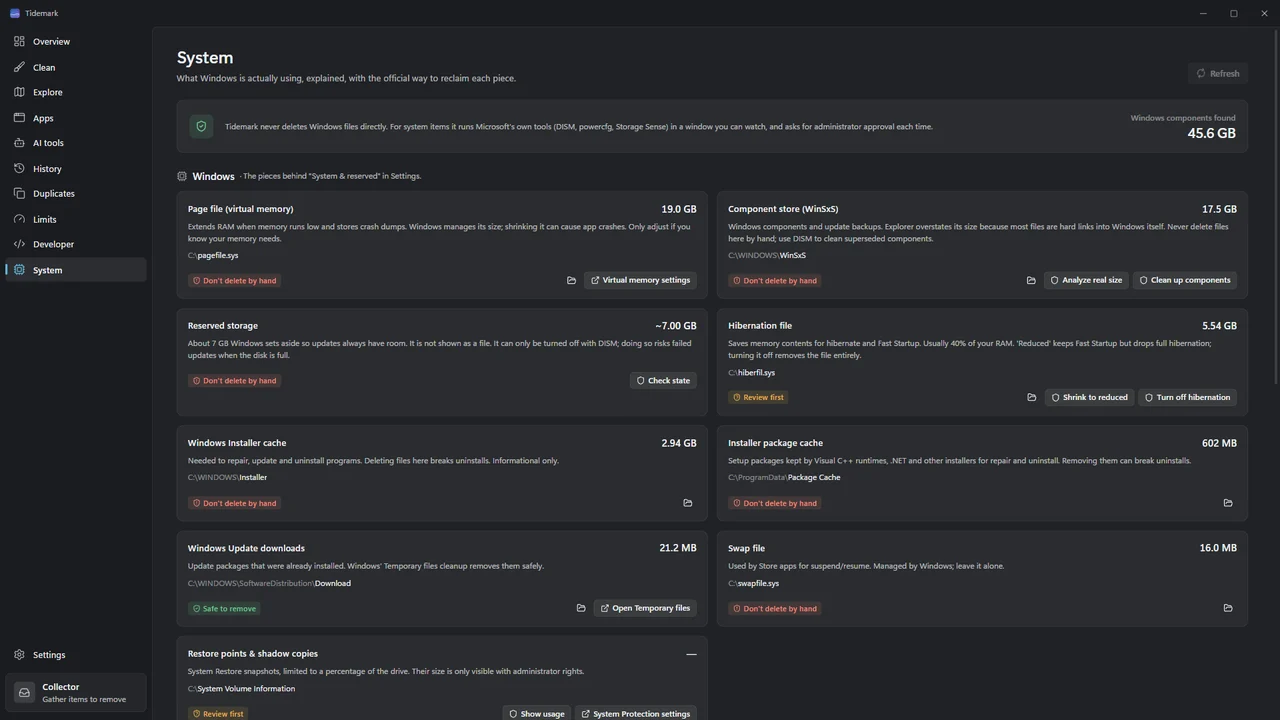
Windows’ own space, explained

The hibernation file, page file, WinSxS, update caches, restore points and virtual disks, each explained, and cleaned only with Microsoft’s own tools.

Tidemark System: the hibernation file, page file, WinSxS, update caches and restore points with their sizes and explanations.
fig. 6 — SystemWindows' own space explained, cleaned with Microsoft's tools.

2.3

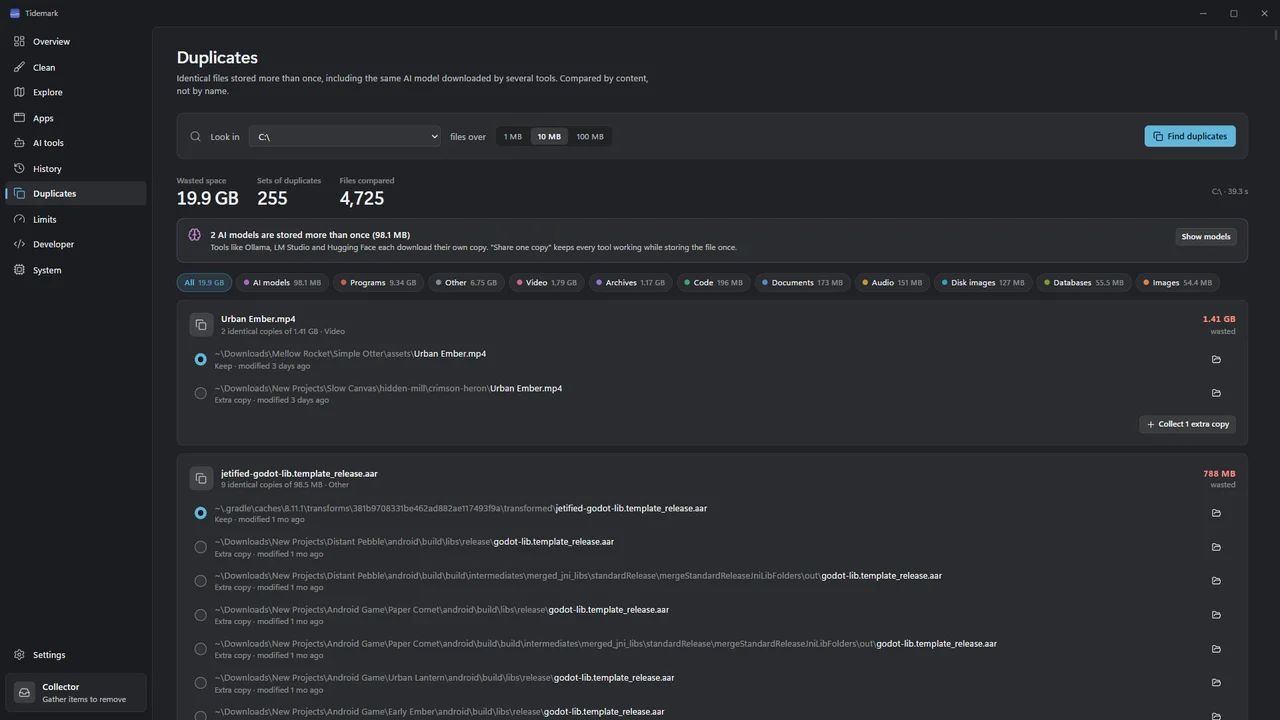
Find the same file twice, even AI models

Identical files by content, with cloud-only files skipped. Keep one shared copy of a model used by Ollama, LM Studio, Hugging Face and ComfyUI, and every tool keeps working.

Tidemark Duplicates: groups of identical files with their sizes and locations.
fig. 7 — DuplicatesFind identical files, including duplicate AI models.

04Safe by design

Nothing disappears by surprise.

A cleaner you can’t trust is worse than none. These rules are built into Tidemark, not left to a setting.

  1. 4.1

    You review everything first

    Tidemark shows exactly what it will remove before anything moves. Nothing is deleted in the background.

  2. 4.2

    The Recycle Bin, every time

    Removals go to the Windows Recycle Bin, and Windows warns before anything would be deleted permanently.

  3. 4.3

    Recent files are left alone

    Limits never touch a file changed in the last 24 hours.

  4. 4.4

    Microsoft’s tools for Windows’ own space

    System items are never deleted directly. DISM, powercfg, Storage Sense and diskpart run in a visible window after a Windows permission prompt.

  5. 4.5

    Apps uninstall the way they were built to

    Tidemark only runs the uninstaller Windows has registered for an app, and offers leftovers once the app is gone.

  6. 4.6

    Shared AI models keep working

    Before sharing one copy of a model, Tidemark checks both files again, links them and only then removes the extra copy.

05Pricing

Free to use. Pay once for Pro.

Everything you need to find and clear space is free, with no trial timer. Pro adds history, forecasts, limits, watches, fast scan and the power tools.

Compare Free and Pro
Launch price, for a limited time: save 50%

Tidemark Pro

$9.99$19.99once, tax included
  • One payment, no subscription
  • Up to 3 PCs at a time
  • Updates through the Microsoft Store
  • 14-day money-back guarantee
See pricing

06Compare

How Tidemark compares.

Based on each tool’s own published feature list. “Not listed” means the vendor doesn’t advertise it.

Full comparison
Tidemark compared with other Windows disk tools
FeatureTidemarkWizTreeWinDirStatTreeSizeWindows Storage settings
Space per app
Yes
Not listed
Not listed
Not listed
Partly
What grew between scans
Yes
Not listed
Partly
Partly
No
When the drive will be full
Yes
Not listed
Not listed
Not listed
No
Clean sorted by risk
Yes
Not listed
Partly
Not listed
Partly
System space explained
Yes
Not confirmed
Partly
Not listed
Partly
AI tools and models
Yes
Not listed
Not listed
Not listed
No

07Private by design

Your scans never leave your PC.

No account, no ads and no telemetry. The only time Tidemark goes online is to check a Pro license key.

Processing
On your PC
Account
None
Telemetry and ads
None
File names, sizes and history
Stay on your PC
Uses the internet
Only to activate Tidemark Pro and re-check the key about once a week
Sent when activating
Your license key and your PC’s name

noteRunning Ollama, LM Studio or ComfyUI? Models are often the biggest thing on the drive.

Read the guide

08Questions

Good questions, straight answers.

All questions
01What does Tidemark do?

It shows where your disk space went, what has been growing and how to get space back safely. It scans your drives, adds up space per app, explains Windows’ own system space, remembers past scans so you can see what grew, and clears what is safe to clear through the Recycle Bin.

02How is it different from WizTree or WinDirStat?

Those show you what is big right now. Tidemark also remembers past scans, so it can say which folders grew and when a drive will fill, adds space up per app, explains Windows’ system space and cleans it with Microsoft’s tools. The comparison pages go through it tool by tool.

03Can Tidemark delete something important?

Tidemark is built so that it does not. You review everything before it moves, removals go to the Recycle Bin, items that cannot be recreated are explained instead of offered, and Windows’ own space is cleaned only with Microsoft’s tools.

04What is free and what is Pro?

Overview, Clean, Explore, Apps, running uninstallers, AI tools, System, finding duplicates, daily snapshots and the Collector are free with no time limit. Pro adds snapshot comparisons and forecasts, Limits, Watches, sharing duplicate AI models, Developer cleanup, Fast scan, clearing what uninstalled apps leave behind and stopping AI tools.

05Is it a subscription?

No. Tidemark Pro is one payment, and it includes the updates that come through the Microsoft Store.

06Does Tidemark send my files or scans anywhere?

No. File names, sizes and history stay on your PC. There is no account, no telemetry and no ads.

→Get Tidemark

See where your space went.

Free to use, with no time limit. Tidemark Pro is $9.99 once (usually $19.99), for up to 3 PCs.

coming soonto the Microsoft Store

See pricing

Windows 10 (version 2004, build 19041) or later and Windows 11, on x64 PCs.